Stop Rebuilding NOT Lists: 6 Job Search Filters That Last

Compare your CV to a role like this one. Create my CV
The best way to filter job listings is to combine core filters (location, job type, experience, date posted, salary) with saved searches and persistent keyword exclusions. Native filters alone reset too often to keep unwanted listings out for good. When a platform can’t save your exclusions, a browser extension or a platform like Job Tide fills that gap and keeps results relevant over time.
TL;DR:
- Setting narrow filters first, especially date posted and job type, reduces clutter before layering on experience and salary filters.
- Using saved searches and alerts helps maintain filter persistence, but exclusions must be rebuilt unless using dedicated tools.
- Browser extensions and platforms like Job Tide provide persistent exclusion lists to avoid seeing reposted or unwanted job listings across multiple sites.
- Excluding keywords like seniority, internship, and work format terms prevents common noise that filters alone typically miss.
- Regularly checking filter effectiveness prevents false negatives, ensuring filtered results stay relevant over time.
Table of Contents
- What Are the Core Job Search Filters?
- How Do You Filter Jobs on LinkedIn, Google, and Indeed?
- How Do You Exclude Unwanted Jobs With Keywords?
- How Do You Save Searches and Set Job Alerts?
- Should You Use Browser Extensions for Job Filtering?
- Do Your Filter Settings Actually Work Over Time?
- How Do You Customize Filters by Industry or Job Role?
- The Filter Trap Nobody Talks About
- Get Persistent Filters and Tailored Matches With Job Tide
- Sources
- FAQ
What Are the Core Job Search Filters?
Six filters do most of the work in any job search: location and radius, job type, remote or hybrid setting, experience level, date posted, and salary. Each one trades recall for precision. A five-mile radius on “remote only” with a 24-hour date filter gives you a small, sharp list. Widen the radius or drop the date filter, and you get more results, but more noise too.
Start narrow, then loosen only where results run dry. Set date posted first; stale listings waste more time than any other filter mistake. Then layer job type and experience level, since these two together eliminate most mismatched postings. Salary filters matter most when you’re comparing offers across companies, but treat them as a soft filter. Employers list ranges inconsistently, and some skip a range altogether.
Checklist for a first pass:
- Set date posted to a recent period to focus on fresh listings.
- Lock in job type (full-time, contract, or part-time).
- Choose remote, hybrid, or on-site explicitly, not by default.
- Add experience level once you see how many results remain.
- Layer salary last, and only if you have a firm floor in mind.
How Do You Filter Jobs on LinkedIn, Google, and Indeed?
Each platform hides its filtering power in a slightly different place, and the differences trip up even experienced jobseekers.
- LinkedIn: Open a job search, then click “All filters” above the results. You’ll find experience level, employment type, date posted, and remote settings in one panel. LinkedIn’s own help documentation notes that a single search can render up to 1,000 results by default, so stacking two or three filters early keeps that number manageable. Location filtering lives in a separate panel; check it directly if results seem geographically off, since LinkedIn documents known quirks in how location filters apply. One catch: Boolean NOT searches on LinkedIn do not persist between sessions, so you’ll need to re-enter exclusion terms each time you start fresh.
- Google Jobs: Search a role and city (or try “jobs for biology majors” style queries), and Google surfaces a blue results box with filters for occupation, date posted, and work-from-home status, according to Google’s own search help documentation. The occupation selector is worth testing even when your title doesn’t match exactly. Google groups adjacent roles together, which can surface postings a literal keyword search would miss.
- Indeed: The filter panel sits to the left of search results. Indeed’s support team specifically recommends filtering by pay, work setting, job type, and date posted, then saving the search once it’s dialed in. If filters seem to do nothing, clear your browser cache first. Indeed’s filter state occasionally sticks from a previous session and quietly overrides new selections.
Pro Tip: If a platform’s filter count doesn’t drop after you apply a new setting, refresh the page before assuming the filter is broken. Half of “broken filter” complaints are just a stale page render.
How Do You Exclude Unwanted Jobs With Keywords?
Boolean operators let you subtract noise that filters alone can’t touch. A search like "project manager" NOT "senior" removes listings aimed at more experienced candidates, and phrase searches in quotation marks stop platforms from splitting your query into loose keyword matches. The catch: most platforms don’t remember these exclusions between sessions, which means you’re rebuilding your NOT list every time you search.
A short starter blocklist covers most noise:
- Seniority terms: “senior,” “lead,” “principal,” “director”
- Employment type terms: “unpaid,” “internship,” “commission only”
- Work format terms: “on-site required” (if you need remote only)
Use full words instead of abbreviations. Excluding “sr” instead of “senior” catches almost nothing, since job titles rarely abbreviate that way. Add exclusions one at a time rather than all at once, and check your result count after each addition. If your list drops from 200 to 4 results in one step, you’ve likely overblocked and filtered out legitimate matches along with the noise.
How Do You Save Searches and Set Job Alerts?
Saved searches turn a one-time filter setup into an ongoing feed, and most platforms carry your filter state (location, job type, salary) into the alert automatically.
- Apply your core filters and any keyword exclusions, then look for a “Save this search” or bell icon near the results header.
- Name each saved search by role and priority, like “Backend Dev, High Priority” or “Ops Analyst, Backup Option,” so alerts arriving by email are easy to triage.
- Set alert frequency to daily for your top-priority searches and weekly for backup ones; daily alerts on everything creates inbox fatigue fast.
- Review alerts weekly. If a saved search hasn’t produced a match in two weeks, broaden one filter (usually radius or date posted) before assuming the market is dry.
Indeed’s guidance specifically ties alert creation to the refinement step, meaning alerts you set before finishing your filters will surface the same noisy results you were trying to escape.
Should You Use Browser Extensions for Job Filtering?
Native filters rarely persist exclusions across sessions, which is the real gap driving job seekers toward extensions. Tools built specifically for this, like the Job Search Filter extension on the Chrome Web Store, can hide applied, reposted, promoted, or already-viewed listings across multiple job boards at once, something no single platform’s native filter panel does on its own.
Centralized dashboard tools take a different approach, letting you define keyword and company exclusion rules once and apply them everywhere you search, according to Loopcv’s filtering documentation.
Before installing anything, run through a short privacy checklist:
- Check what permissions the extension requests. A job filter tool doesn’t need access to your entire browsing history.
- Confirm whether exclusion lists save locally or sync to a cloud account, and whether that matters to you.
- Read the Chrome Web Store reviews and update history before trusting an unfamiliar developer.
This is exactly the gap some platforms aim to close: rather than bolting an extension onto three different job boards, they aim to keep your exclusion lists and filter preferences in one place, tied to recommendations tailored to your search.
Do Your Filter Settings Actually Work Over Time?
Checking whether your filters hold up matters more than setting them once and walking away. Two things are worth tracking every week: how much time your filtered search saves you compared to browsing unfiltered results, and whether your exclusion list is quietly hiding jobs you’d actually want. A blocklist that’s too aggressive creates false negatives, and you won’t notice unless you spot check.
Some platforms’ approaches center on reducing that manual auditing work, with saved filter states and recommendation tuning built around avoiding both problems at once.
Author credentials, platform-specific case studies, and internal usage metrics for this section are pending and will be added as they become available.
How Do You Customize Filters by Industry or Job Role?
A generic filter setup treats every industry the same way, and that’s exactly why it underperforms for specialized searches. Tech roles reward tight keyword exclusions around seniority and stack requirements, since a “software engineer” search without exclusions returns everything from junior contract gigs to staff-level architecture roles. Healthcare searches lean harder on location radius and shift type, since remote filtering matters less when the job requires physical presence.
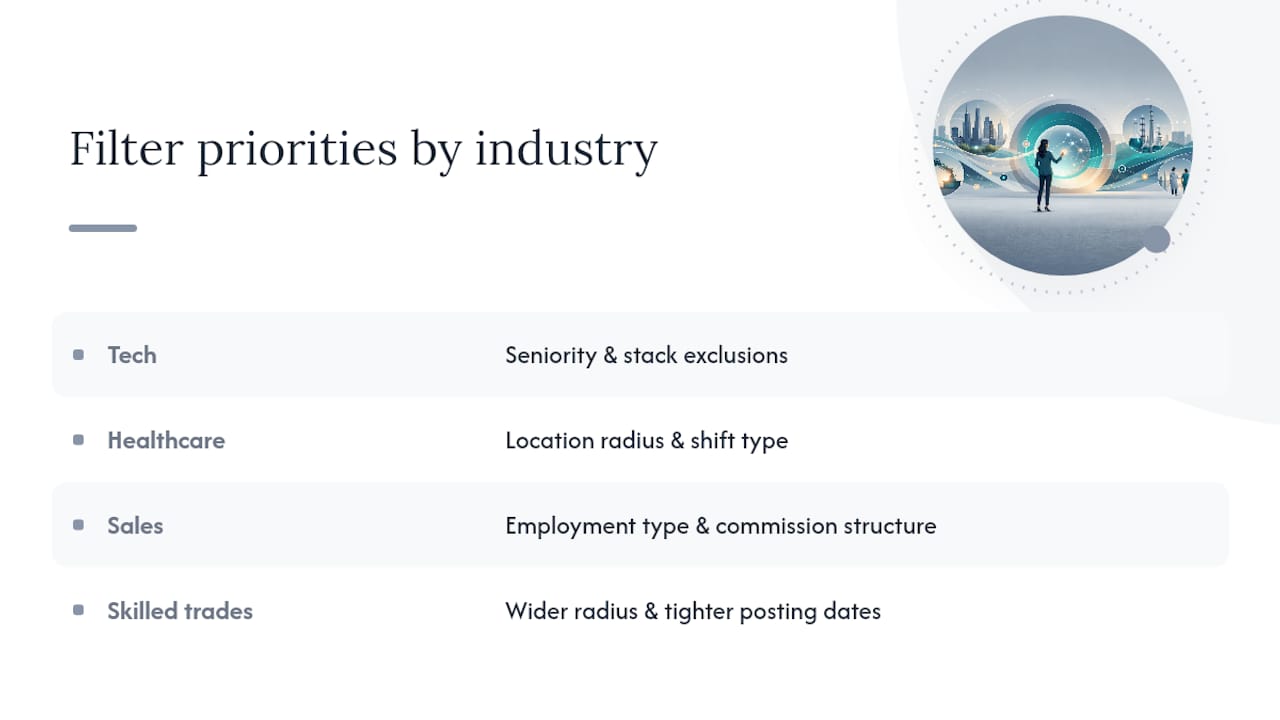
Sales and customer-facing roles benefit from filtering on employment type and commission structure specifically, since “unpaid” and “commission only” postings often slip past a generic job type filter. Skilled trades and manufacturing searches do better with a wider radius and a tighter date filter, since these postings turn over fast and get buried quickly once new listings arrive.
Company-specific filters add another layer worth using deliberately. Filtering by company size narrows toward startups or enterprise employers depending on what pace of work you want. Industry filters help when your skills transfer across sectors, and where a platform shows employer ratings, cross-check that signal against a separate review source before ruling a company out entirely.
Advanced filters like education level, certifications, and language requirements matter most in regulated or licensed fields. A nursing search without a certification filter returns postings you’re not qualified for, and a bilingual role search without a language filter buries the listings that actually want your second language. The rule holds across industries: the more specialized the role, the more filters you should stack, not fewer.
The Filter Trap Nobody Talks About
Most job search advice treats filters as a one-time setup: pick your criteria, hit search, done. That’s backwards. The real skill is in the exclusions, not the inclusions, and almost no platform makes exclusions persistent by default. That gap is the single biggest reason people say job boards “show the same junk every time.”
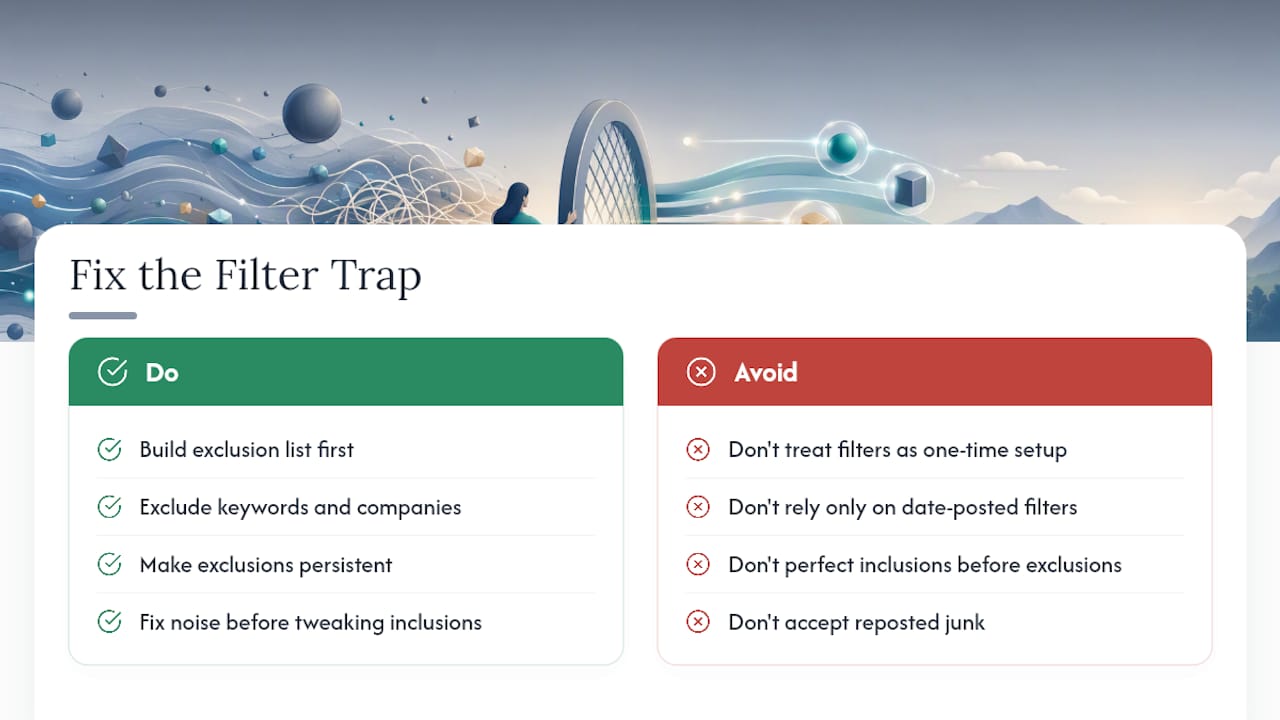
The conventional wisdom oversells date-posted filtering as the fix for stale listings. It helps, but reposted jobs game that filter by resurfacing as “new” without ever actually closing. A keyword or company exclusion list catches what a date filter can’t.
If you take one thing from this, prioritize building your exclusion list before you fine-tune your inclusion filters. Most job seekers do the opposite: they perfect the salary range and experience level, then get frustrated by the same three bad postings resurfacing weekly. Fix the noise first. The signal takes care of itself once the noise is gone.
— Alisher
Get Persistent Filters and Tailored Matches With Job Tide
Job Tide is the alternative to juggling three job boards and a separate browser extension just to keep your filters consistent. Instead of resetting exclusion lists every session or bouncing between LinkedIn, Google Jobs, and Indeed to compare results, you set your filters and exclusions once inside Job Tide and get job recommendations matched to your skills and preferences going forward.
It’s worth trying if you’re seeing the same reposted listings resurface week after week, if your current searches return too many mismatched roles despite tight filters, or if you’re simply tired of rebuilding a keyword blocklist every time you open a new tab. Job Tide is currently in its launch phase, with more matching features rolling out as the platform grows. Visit the Job Tide landing page to set up your first filtered search and see what a persistent, tailored job feed actually looks like.
Sources
- Search for jobs on Google - Google Search Help
- Improving Your Job Searches (Tips and Help) - Indeed
- Job Search Filter — Hide (Chrome Web Store)
FAQ
What is the best search engine to look for a job?
There isn’t one single best option. Google Jobs aggregates listings from many boards with an occupation filter, while LinkedIn and Indeed each offer filters the others don’t, so most effective job searches use at least two platforms together.
What is a job filter?
A job filter is a setting that narrows search results by a specific criterion, such as location, salary, job type, or date posted, so you see only listings that match your requirements.
How do I get all filters on LinkedIn?
Open your job search results and click “All filters” above the listings. That panel includes experience level, employment type, date posted, and other options in one place, though LinkedIn notes that searches can render up to 1,000 results by default even after filtering.
Does Indeed have filters?
Yes. Indeed’s filter panel sits to the left of your search results, and its own support documentation recommends filtering by pay, work setting, job type, and date posted before saving a search or setting an alert.
Does Job Tide let me save filter and exclusion settings?
Some platforms are built around persistent filtering and tailored recommendations, so preferences carry forward instead of resetting with every new search session.
Compare a CV to this kind of role
Bring the job you are applying to. JobTide keeps CV lines that share words with that job and lists what the CV leaves out. An ATS score is not in this MVP yet.
Create my CV